
GMass 101

A quick guide on getting started with GMass and sending your first campaign.
- Before sending emails, create a Google Sheet containing the customer information you want to import into your mass email campaign.
- In most cases, you only need the customer’s name and email address.
GMass uses the column headers in your sheet to pull data into each email and personalize the message.
⚠️ Important: Do not use spaces in your column headers.
Example:FullName,FirstName,LastName,Email

- Open your Gmail inbox and click the “Compose” button to start a new email.

- You will see a new, red “GMass” button next to the regular blue Send button.
This is the button used to send mass emails through GMass. - Before sending your campaign, you must connect your Google Sheet to GMass.
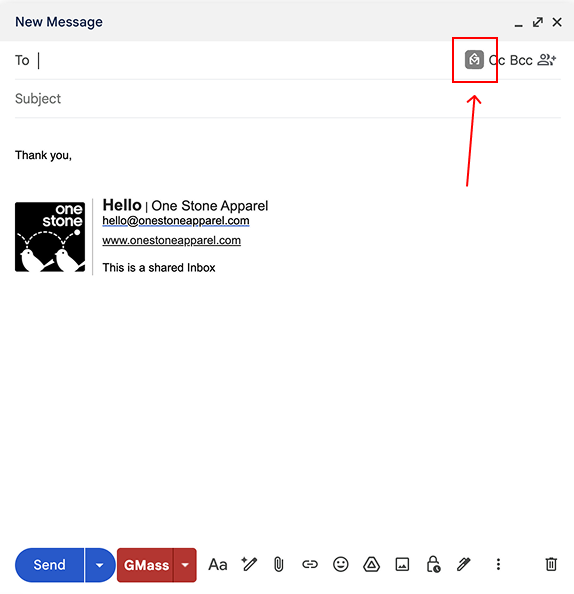
- Click the small GMass spreadsheet icon next to the CC button.
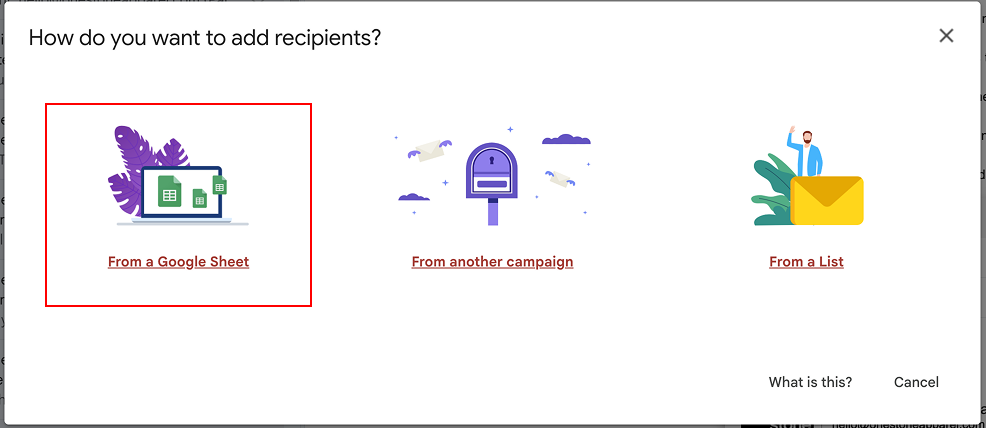
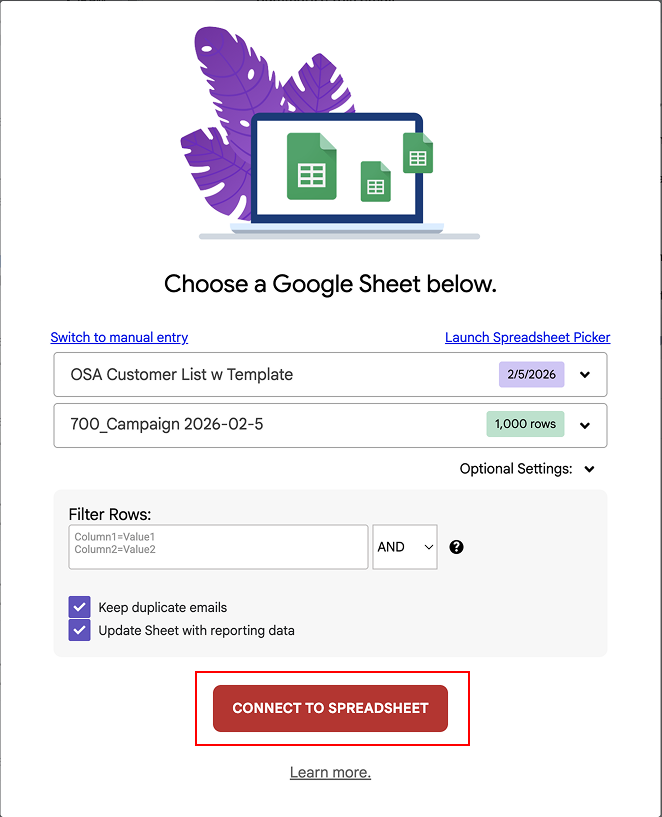
- In the popup window, select “From a Google Sheet.”
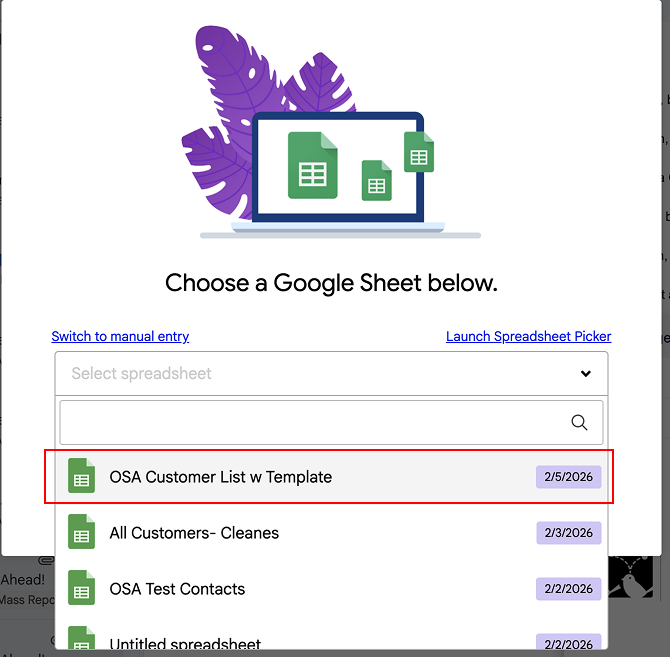
- In the dropdown menu, select the Google Sheet you created.
(It will appear under the same name as your Google Sheet file.)
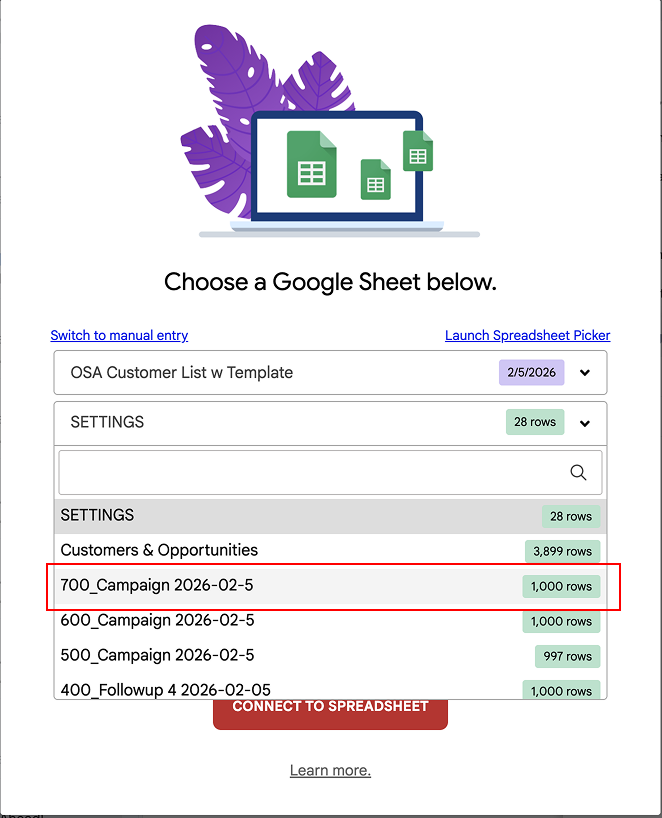
- Next, choose the correct tab/sheet that contains your list of contacts.
You can find the tab name at the bottom of your Google Sheet.
- Check both tracking boxes so GMass can track opens, clicks, and replies.
- Click the red “Connect to Spreadsheet” button.
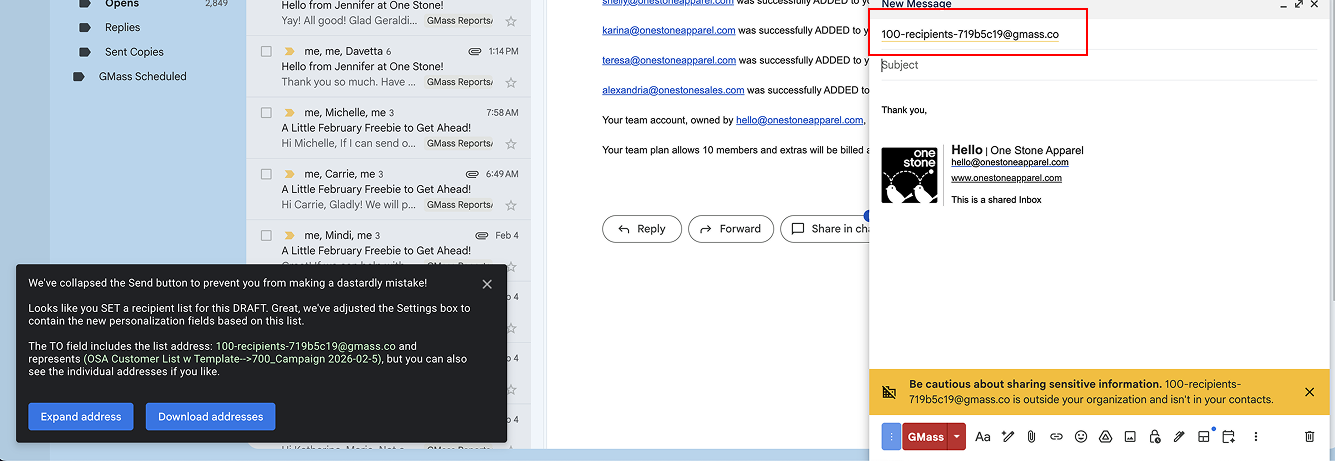
- Once connected, the “To” field will be replaced with a URL that links to your Google Sheet.
You will also see the number of recipients displayed, and the popup window will confirm that the connection was successful.
- Now enter your subject line and write your email message.
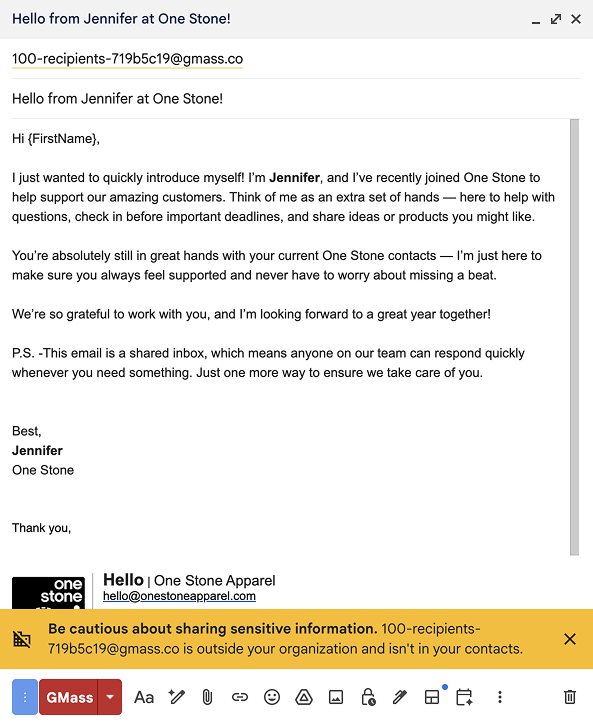
- To insert customer data into your email, type the “{” symbol.
A dropdown list will appear showing available personalization fields based on your column headers.

- Before sending to your full list, it’s recommended to send a test email to yourself.
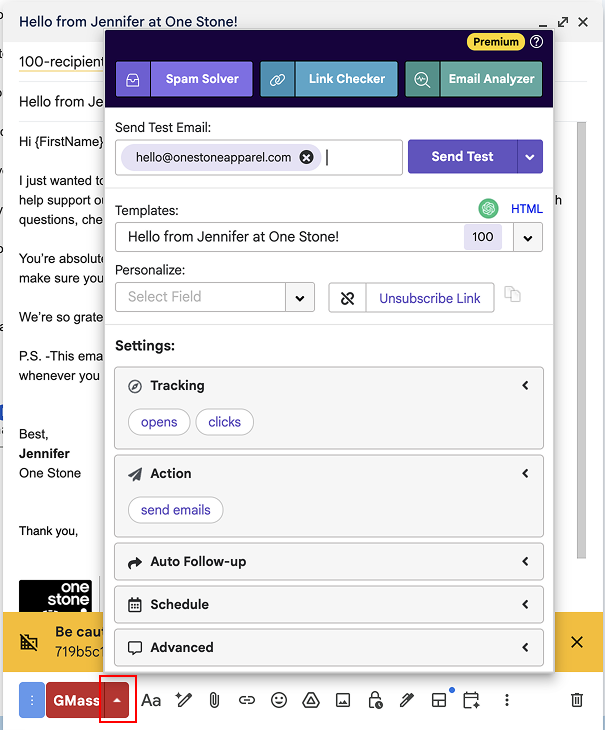
- Click the small arrow next to the red GMass button to open the settings menu.
Enter your email address at the top and click the purple “Send Test” button.
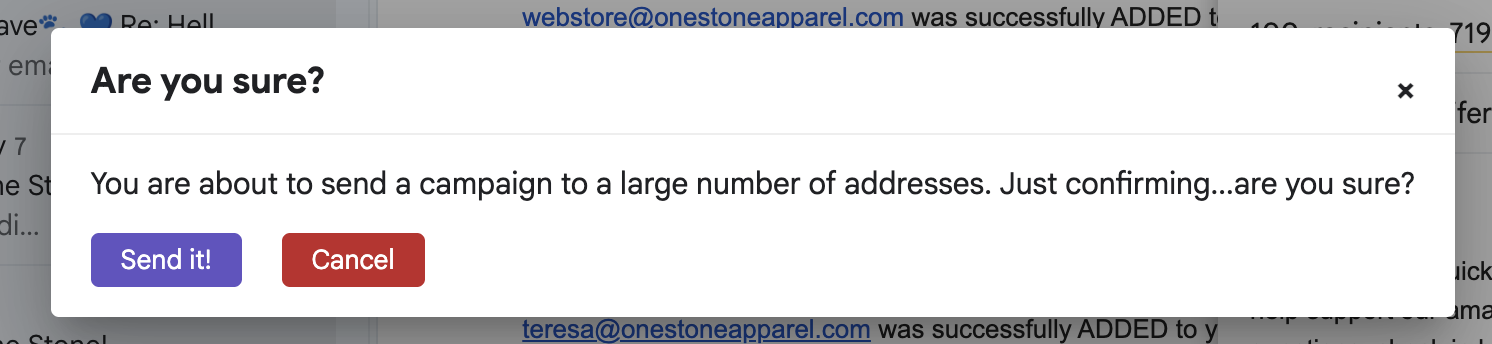
- Once everything looks correct, click the red GMass button and select “Send It.”
Sending typically takes 2–3 minutes depending on the number of recipients.
⚠️ Important: Do not edit your Google Sheet while emails are sending, as this may interrupt the campaign.
- You can monitor your campaign progress in the GMass Dashboard, where you can view stats such as sends, opens, clicks, replies, blocks, and more.
- login using your Gmail account at https://app.gmass.co/dashboard
